
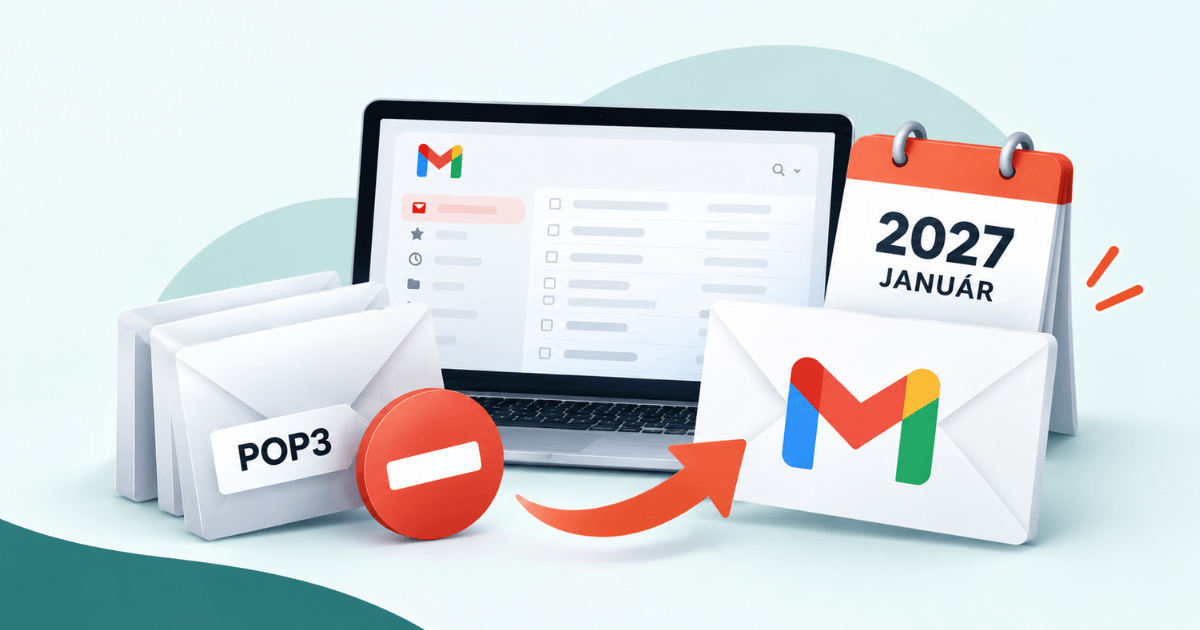
From January 2027, Gmail will stop fetching email from external accounts via POP3. But what does this mean in practice?
Many businesses use their own branded email address (for example, hello@youragency.com) but read and manage their messages in the familiar Gmail interface. Until now, this was made possible by a connection called POP3, which let Gmail automatically retrieve messages sent to the business address. This option is going away, so anyone who manages their business email this way will need to switch to a different setup. Since the first quarter of 2026, new POP3 fetching can no longer be set up in Gmail, and existing setups will keep working until January 2027. Gmailify is being discontinued at the same time; this feature applied Gmail’s spam filtering and inbox categories to external accounts.
In this article, we’ll show you how to check whether you’re affected and walk you through the switch step by step, so your business email keeps working smoothly after 2027.
How do I check whether I’m affected?
If you use a custom-domain email address in Gmail, you can check in a few steps whether your messages arrive via POP3.
- Open Gmail in a web browser on your computer.
- Click the gear icon in the top right corner, then select “See all settings”.
- Open the “Accounts and Import” tab.
- Find the “Check mail from other accounts” section.
- If your business email address is listed there, you’re using POP3 fetching, so you’ll need to switch.
It’s also worth checking the “Send mail as” section on the same page. If your business address is listed there, no action is needed: sending email from Gmail as your business address is not affected by the change.
If you manage your business email not in the Gmail web interface but in a separate email client, such as Outlook or Thunderbird, the change most likely doesn’t affect you. These programs connect directly to your business email account, typically via IMAP, which lets you access and manage your messages across multiple devices (POP3 has fallen behind more modern technologies in this respect, and syncing with it was always difficult). Google’s change does not affect IMAP support, so if you already use this kind of setup, there’s nothing you need to switch.
How do I switch? What should I watch out for?
It depends! You can choose from several options, depending on where you want to manage your email going forward. Here they are:
Setting up automatic forwarding to Gmail
If you want to keep receiving your business email in the Gmail web interface, automatic forwarding is the simplest solution. Here are the steps:
- Log in to your hosting provider’s control panel (for example, cPanel, Plesk or another hosting panel).
- Find the Email Forwarding / Forwarders menu.
- Select the business email address whose messages you want to forward.
- Enter your Gmail address as the destination.
- Save the settings.
- Send a test message to your business address from another email account and check that it arrives in Gmail.
The exact menu names may vary between hosting providers.
A few things to keep in mind during setup:
- Forwarding only works if your domain’s MX record points to your hosting server.
- After switching, delete the old POP3 fetching in Gmail, otherwise you may receive duplicate messages.
- It’s a good idea to keep a copy of your messages on the hosting server as well, but this uses up storage space, so clean it up from time to time.
- Make sure your hosting’s spam filter is turned on, so unwanted messages aren’t forwarded to Gmail.
- In Gmail, create a filter for messages sent to your business address (“Never send it to Spam”, with a label).
- Keep an eye on your Gmail storage too: if the 15 GB fills up, forwarded messages will bounce.
Important: forwarding only brings incoming messages into Gmail. If you also want to reply from Gmail as your business address, you can set this up with the “Send mail as” feature, through your hosting provider’s SMTP server. This is not affected by the change and will keep working after 2027.

Setting up an IMAP email client
If you want to both send and receive email from your business address, an email client that supports IMAP, such as Microsoft Outlook, Mozilla Thunderbird or Apple Mail, can be a good long-term solution.
- Open the email client of your choice.
- Select the option to add a new email account.
- Enter your business email address and password.
- If the program doesn’t detect the settings automatically, choose manual configuration and select IMAP.
- Enter the incoming (IMAP) and outgoing (SMTP) server details provided by your hosting provider, along with the correct ports and encryption settings.
- Save the settings, then test both receiving and sending.
The advantage of IMAP is that your email stays in sync across devices, so you can manage your messages up to date on both your computer and your phone.
Adding your business email account to the Gmail mobile app
Google continues to support external email accounts in the Gmail mobile app, so you can still manage your business email on your phone.
Setup steps:
- Open the Gmail app on your phone.
- Tap your profile picture in the top right corner.
- Select “Add another account”.
- Choose “Other”, or the account type that matches your provider.
- Enter your business email address.
- If needed, choose manual setup, then select IMAP.
- Enter the required server details and your password, then complete the setup.
This lets you keep using the Gmail app, but your business account will work as a separate mailbox.
Google Workspace
If you have several team members, or you want to manage your business address natively in Gmail without forwarding, Google Workspace is the cleanest solution. It’s a paid service, and it requires moving your domain’s email entirely to Google.
What happens to your existing emails?
Messages previously downloaded into Gmail via POP3 are not deleted automatically. Your existing messages will remain available in your Gmail account.
Keep in mind, however, that previously downloaded messages may not be stored on your hosting provider’s server. If you switch to a new email client, it’s worth making a backup first and checking that all your important messages remain accessible.
What else should you watch out for during the switch?
Beyond setting up forwarding, it’s also worth checking your email authentication. SPF, DKIM and DMARC records verify that messages sent in your domain’s name really come from you. These need to be set up wherever your domain’s DNS is managed, which isn’t always your hosting provider. If your website has a contact form, make sure the sender is your business address, not the visitor’s, otherwise Gmail may send it to spam. You can check these settings with a single test email on mail-tester.com.
Incorrectly configured forwarding can cause some messages to land in the spam folder or even get stuck. That’s why, after switching, you should always test both receiving and sending, ideally with several different email providers.
Need help with the switch?
The end of Gmail’s POP3 support doesn’t mean you have to give up your familiar business email address or managing it in Gmail. With the right settings, your email can keep working smoothly after 2027.
If you’d rather not deal with the technical details, we’re happy to help you make the switch. We’ll check your current settings, discuss which option you’d like to use going forward, and help you through a smooth, secure transition.


